
Merging photos is a simple editing technique that allows you to combine two or more images into one final photo. Learning how to merge photos in Photoshop is useful for creating composites, blending exposures, or combining images for creative effects. In this guide, you’ll learn a clear, step-by-step method to merge photos cleanly and professionally. You may also find our information on Photoshop layers for beginners interesting.
Grab the images below and follow along with the tutorial.
final result after merging photos into a composite image
Timestamps: Step 1 - 02:50 | Step 2 - 06:15 | Step 3 - 09:35 | Step 4 - 16:23| Step 5 - 21:56| Step 6 - 34:37 | Step 7 - 40:20 | Step 8 - 45:15
Why Merge Photos to Create Composite Images?
Creating a composite is simply when you merge photos to create another image, but it’s a little bit more complex than simply overlaying one image on top of another. You must carefully blend your layered images together, adjusting them to create a harmonious composition. Once you’ve got the technique to merge photos mastered, you can replicate it and create complex composites that take your photography to the next level. Also, when you merge photos together, you can create a narrative and in turn, create your own unique pieces of art.
The Idea Behind Merging Photos
Every good merged photo starts with an idea and in my example, I’ve used the idea of students I used to teach in colleges and schools leaving their education and moving on into university or the workplace; generally into the city to continue on with the next stage of their lives.
This tutorial will arm you with a wide set of skills to enable you to merge photos together for varied design and artwork projects.
We’ve chosen three images (which you can download from the form above to follow along!) which work quite well together, but you don’t have to limit yourself to a small number of images, when you’re confident, you can just repeat the processes with your own images. We’re going to merge photos in Photoshop, but if you haven’t got Photoshop there are other programs that you can use that have a similar workflow.


Get access to ALL our online courses - 1000’s of videos, worksheets, critiques of members work, personalised support and much more with our monthly membership.
Open the Photos You Want to Merge in Photoshop.
Watch the video for the full in depth tutorial. Below is a synopsis of the steps taken.
Step 1: Remove the Background Before You Merge Photos
Open the man image > Turn it into a layer by dragging the lock symbol into the bin > Name this layer ‘man.’
Select the Object Select Tool > Select the Man
Inverse the selection. Go to Select > Inverse selection.
Press the backspace button to delete the background.
Press ‘Ctrl/Cmd + D’ to deselect.
Add a Solid Colour Fill layer > Change the colour to White > Drag this layer to the bottom.

Layers panel for the background removal

Stage 1 - with original background

Stage 2 - original background removed

Stage 3 - background replaced with color fill layer
Step 2: Add the River Image to Merge Photos
Drag and drop the river picture onto your image > Click the tick in the option bar to apply it > Make sure the river layer is above the man layer.
Clip the river layer to the man layer - Right click on a blank part of the river layer and select ‘Create Clipping Mask.’ This sticks the pixels in this layer to only the pixels in the layer below it.
Take the Opacity of the river layer down to around 40% so you can see through it.
Select the Move Tool > Move the river layer as shown in the video.
Press ‘Ctrl/Cmd + T’ to enter Free Transform > Resize the river layer to suit > Reposition it as well if you need to.

Creating the clipping mask when adding the river picture.

Layers panel when adding the river picture for merging photos together.

River image overlayed on the picture of the man without adjustments.
Step 3: Remove Parts of the River Layer to Merge Photos
Add a mask to the ‘river’ layer.
Select the Brush Tool > Choose Black as a foreground colour > Set the Opacity and Flow to around 40% > Set the brush hardness to 0% > Brush over the bottom of the river image so it blends in with the man. Adjust the opacity and flow to suit.
Bring back the opacity of the river layer to 100% > Select the image of the river layer, not the mask.
Select the Quick Selection Tool > Click in the sky of the river layer to select it.
Click ‘Select and Mask’ in the options bar or go to Select > Select and Mask (Called Refine Edges on older versions of PS).
Under ‘View Mode’ select ‘Overlay’ > Move the Opacity slider to around 50% > Move the Shift Edge slider to 30% > In the Output Settings, Output to: Selection > Click OK.
Select the mask of the river layer > Press ‘Shift + F5’ or ‘Edit > Fill’ > Choose Black and make sure the Blend Mode is set to Normal and the Opacity is at 100% > Click OK.
Press ‘Ctrl/Cmd + D’ to deselect.
Mask out any other areas left behind as shown in the video.
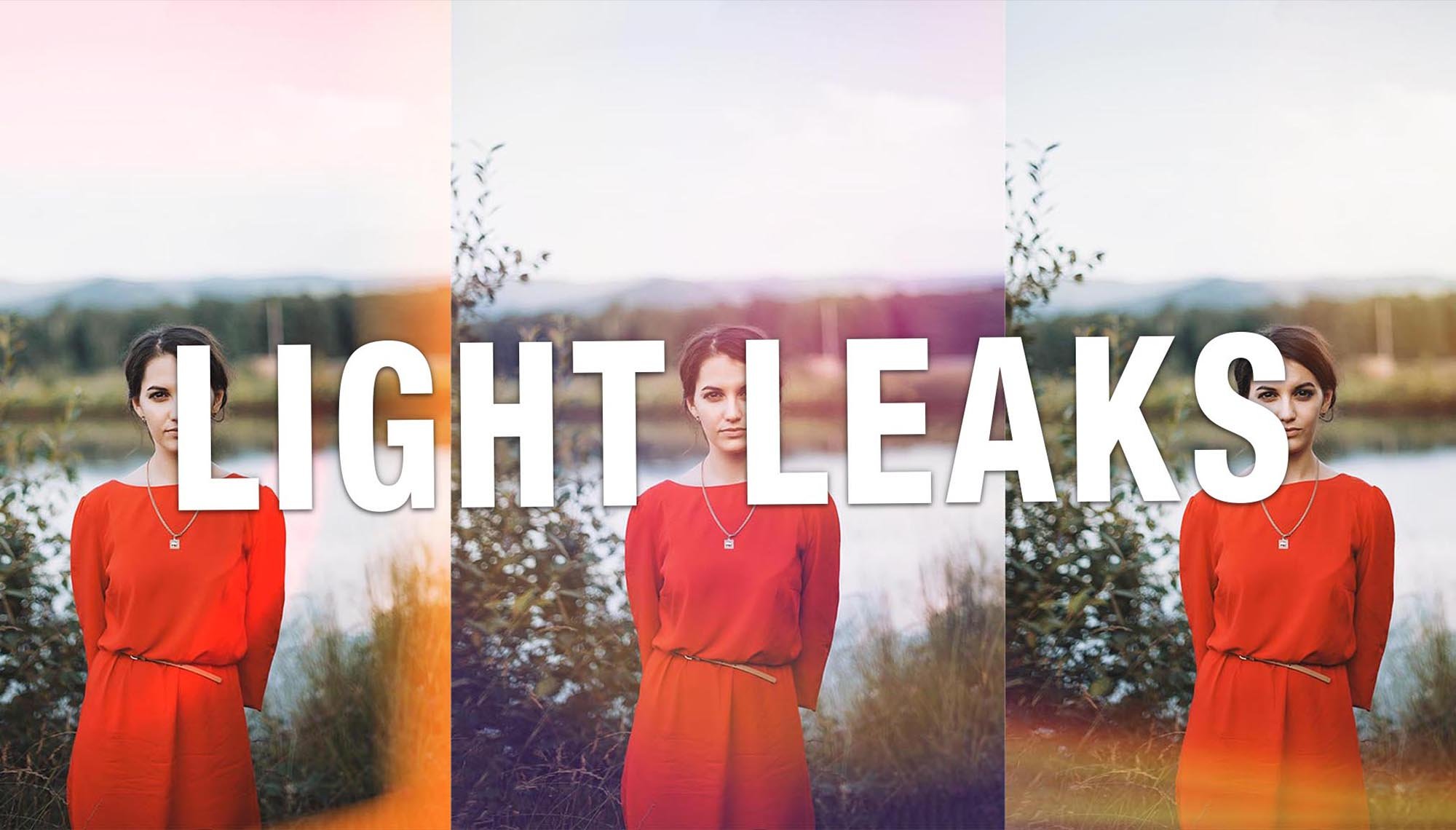
You may find these resources of interest; Light leak overlays tutorial and Double Exposure effect in Photoshop

Removing sections of the river image

Filling the layer mask to hide parts of the river image.

Layers panel in the process of masking parts of the river image.
Step 4: Add More Space and Refine the Image to Merge Photos
Select the river image > Adjust the opacity to suit.
Select the crop tool > In the options bar untick Delete Cropped Pixels and Content-Aware > Click the Clear button to remove any crop ratio settings > Drag the top handle up above the head as shown in the video > Click the tick in the options bar to apply it or press Enter.
Hold down the Ctrl/Cmd key and click on the mask of the river layer. This will create a selection of the white parts of the mask.
You now need to mask out the top of the head. Select the Lasso Tool > Remove parts of the selection by holding down the Alt/Opt key whilst selecting parts > Add to the selection by holding down the shift key whilst selecting parts > Using this technique, remove and add parts to the selection as shown in the video.
Select the man layer > Add a layer mask to it > Remove any parts left overusing the brush tool and black paint as shown in the video. Make sure you are selected on the mask of the man layer when doing this.


Adding additional space above the head for the next image to merge.

Layers panel showing the masks of the top of the head.
Step 5: Add the City Skyline to Merge Photos
Make sure you have no layers selected by clicking into a blank area or the layers panel.
Drag and drop the ‘city skyline’ picture onto your image > Click the tick in the option bar or press Enter to apply it > Take down the opacity of this layer to around 40%. Double check it’s the top layer and that it isn’t clipped to any other layer.
Make sure the city skyline layer is selected and press ‘Ctrl/Cmd + T’ to enter Free Transform > Resize and move the city skyline to suit > Click the tick in the option bar or press Enter to apply the changes.
Hold down the Ctrl/Cmd key and click on the mask of the man layer > Inverse the selection by going to Select > Inverse.
Select the city skyline layer > Add a layer mask to this layer.
Bring back the opacity of the city skyline layer to 100% > Select the image of this layer, not the mask.
Use the Object Select tool to select the sky > Make sure ‘Hard Edge’ is ticked in the options bar.
Select the mask of the city skyline layer > Press ‘Shift + F5’ or ‘Edit > Fill’ > Choose Black and make sure the Blend Mode is set to Normal and the Opacity is at 100% > Click OK.
Press ‘Ctrl/Cmd + D’ to deselect.
Mask out any other areas with the brush tool.
Select the mask of the city skyline.
Zoom in on areas that need refinement > Use the brush tool with black and white paint to hide and reveal parts of the image as needed.
Use the Polygonal Lasso Tool to create selections with straight lines and fill these selections with black to neaten up straight edges as shown in the video.
Group all layers apart from the Colour Fill 1 layer > Name group ‘man, river, city’.

Merging the third photo

Layers panel in photoshop showing layer masks added to the city skyline image.

Refining the masks for merging photos

man, river, city group in the layers panel.
Step 6: Add Effects and Reveal Key Details to Merge Photos
Group all layers apart from the Colour Fill 1 layer > Name group ‘man, river, city’.
Add a Gradient Map Adjustment Layer. Make sure it’s above the ‘man, river, city’ group > Select a Gradient Preset that you like, for my example I use ‘Sepia 1’.
Add a Curves Adjustment Layer. Make sure it’s above the Gradient Map layer > Create a RGB ‘S’ curve.
Reveal the eyes – Select the mask of the river image > Select the Brush Tool > Choose Black as a foreground colour > Set the Opacity and Flow to around 20% > Set the brush hardness to 0% > Brush over the eyes to reveal them.
Now do the same for the ears.
Want to find out more about using curves in Photoshop? Click here to watch our tutorial.

Adding effects to the merged photos

layer panel showing the adjustment layers and masks
Step 7: Enhance Face Blending to Merge Photos
Select the man layer > Hold down the Alt/Opt key, click on the man layer and drag the layer above the ‘man, river, city’ group and below the Gradient Map layer. This will create a copy of the layer.
Change the Blend Mode of the man copy layer to Screen > Take the opacity of this layer down to around 30%.
Select the river layer > Increase the opacity of this layer to suit.
Continue to change the opacity of the man copy layer and the river layer until you get a desired look.
Reduce the contrast of the city skyline. Add a Curves Adjustment layer above the city layer > Clip the curves layer to the city layer > Adjust the Curves Adjustment layer to suit.

Enhanced blending of the face with further adjustments and blend modes

Adjusting the blend modes when you merge photos gives a more impressive effect.
Step 8: Add a Background and Make Final Refinements to Merge Photos

Layers panel showing the added background and the additional refinements.
Group the man copy, Gradient Map and Curves layer > Name the group ‘effects.’
Add a Colour Fill layer above the other ‘Colour Fill 1’ layer > Choose a colour within your image as the background colour > Select the mask of the ‘Colour Fill 2’ layer.
Select the Brush Tool > Choose black as a foreground colour > Set a low Opacity and Flow > Set the brush hardness to 0% > Mask out this colour to reveal the white underneath and get a desired effect.
Soften the edges of the foreground buildings (optional) – Select the mask of the city skyline layer > Select the Brush Tool > Choose white as a foreground colour > Set a low Opacity and Flow > Set the brush hardness to 0% > Paint over the edges of the buildings to soften them as shown in the video.
Save as a .psd.

This was my final result when I merged these photos together.
Final Tips for Successfully Merging Photos
In this tutorial, we’ve explored the fundamentals to merge photos in Photoshop and create stunning composites. We’ve also touched upon a few other key techniques that you can use in your Photoshop workflow, such as blend modes, layers, masking and much more. If you wanted to learn more about these techniques in more detail, we have a dedicated course just for Photoshop, and you can find out more about that here.
Now that you’re able to merge photos in Photoshop and create your own composites, you’re only limited by your own creativity!
And if you wish to learn more, it is best to become a member and enjoy the community of photographers.
Like this? - Check out similar tutorials below

We hope you like the tutorial, for more, please subscribe to our newsletter below.
If there’s anything you want us to cover here at TSoP, please add it in the comments below, it gives us great ideas for new tutorials.